
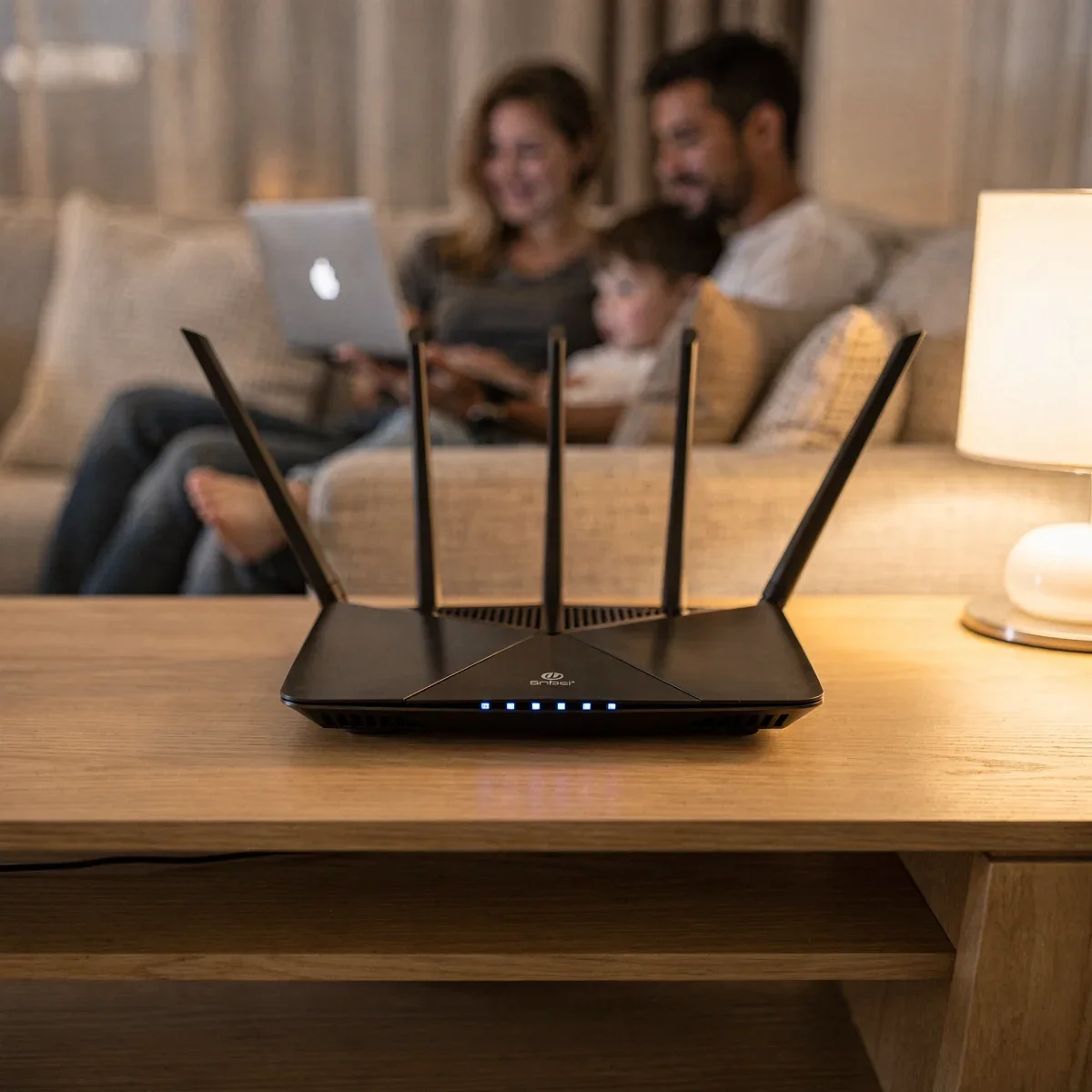
Few things derail a quiet evening faster than a video call freezing while someone else downloads a massive gaming update. When you have multiple phones, laptops, smart TVs, and security cameras competing for bandwidth, standard ISP equipment buckles under the pressure. Knowing how to choose the right Wi-Fi router for busy household demands will keep your connection stable and eliminate dead zones across every room.
Advertisements
Understand Standalone Routers vs. Mesh Wi-Fi Systems
Your home's square footage and layout determine the router hardware style you need. A traditional standalone router houses all antennas and processing power inside one central unit, making it ideal for compact single-story homes or apartments under 1,500 square feet.
If your home spans multiple stories, features thick plaster walls, or exceeds 2,000 square feet, a mesh Wi-Fi system is usually the smarter investment. Mesh systems use a primary base station paired with smaller satellite nodes placed throughout your house, creating a unified network with seamless roaming under a single network name.
| Feature | Standalone Router | Mesh Wi-Fi System |
|---|---|---|
| Best Home Size | Under 1,800 sq. ft. | 2,000+ sq. ft. or multi-story |
| Setup Complexity | Simple, single device | Easy app setup across nodes |
| Expandability | Limited (requires extenders) | Add nodes anytime |
| Price Range | $80 – $250 | $180 – $500+ |
Choose the Right Wireless Standard: Wi-Fi 6, 6E, or Wi-Fi 7
Wireless technology standards dictate both maximum throughput and how efficiently data packets travel between devices. Investing in outdated tech leaves your network vulnerable to congestion as you add new hardware.
- Wi-Fi 6 (802.11ax): The dependable baseline for most families. It uses OFDMA technology to send data to dozens of devices simultaneously without queuing lag.
- Wi-Fi 6E: Adds access to the clean, uncongested 6 GHz wireless band, which prevents interference if you live in a dense suburban neighborhood or apartment complex.
- Wi-Fi 7: The newest standard built for extreme bandwidth, multi-gigabit fiber connections, and 8K streaming. It is higher priced, making it best for enthusiasts who want maximum future-proofing.
Essential Features for Multi-Device Environments
Raw speed ratings on the retail box do not tell the whole story. Look for specific internal features that actively manage network traffic when shopping at retailers like Best Buy or Amazon.
- Tri-Band or Quad-Band Capability: Dual-band routers split traffic between 2.4 GHz and 5 GHz. Tri-band routers add a second 5 GHz or 6 GHz band, providing dedicated highway lanes for demanding devices.
- Quality of Service (QoS): Lets you prioritize critical tasks, such as work Zoom calls or online gaming, over background file downloads and smart speaker updates.
- Multi-Gig Ethernet Ports: If your internet service provider offers plans above 1,000 Mbps (1 Gbps), ensure the router has a 2.5 Gbps WAN port so you do not bottleneck incoming speeds.
- Automatic Security Updates: Routine firmware patches safeguard connected smart home gadgets, such as doorbells and thermostats, against vulnerabilities.
Quick Takeaways
- Pick a mesh Wi-Fi system for multi-story homes over 2,000 sq. ft. and a standalone router for smaller spaces.
- Aim for at least Wi-Fi 6 with tri-band support to prevent bandwidth competition among 30+ smart devices.
- Check for Quality of Service (QoS) software to prioritize work video calls and latency-sensitive tasks.
Frequently Asked Questions
How many devices can a modern home router handle?
Most modern Wi-Fi 6 and Wi-Fi 7 routers comfortably support between 40 and 100 simultaneous active connections, including background smart home accessories, without dropping speeds.
Should I rent a gateway from my ISP or buy my own router?
Buying your own router saves between $10 and $15 monthly in rental fees, provides better coverage controls, and yields higher overall performance than standard ISP rental units.
Where is the best spot to place a Wi-Fi router?
Place your router in a central, elevated location away from thick concrete walls, metal appliances, and enclosed cabinets to maximize signal dispersion across your living spaces.
Wrapping Up
Upgrading to a capable Wi-Fi router for busy household setups eliminates buffering headaches and keeps everyone connected during peak evening hours. Evaluate your home's square footage, choose a modern standard like Wi-Fi 6 or higher, and look for traffic management tools that match your family's daily habits.