
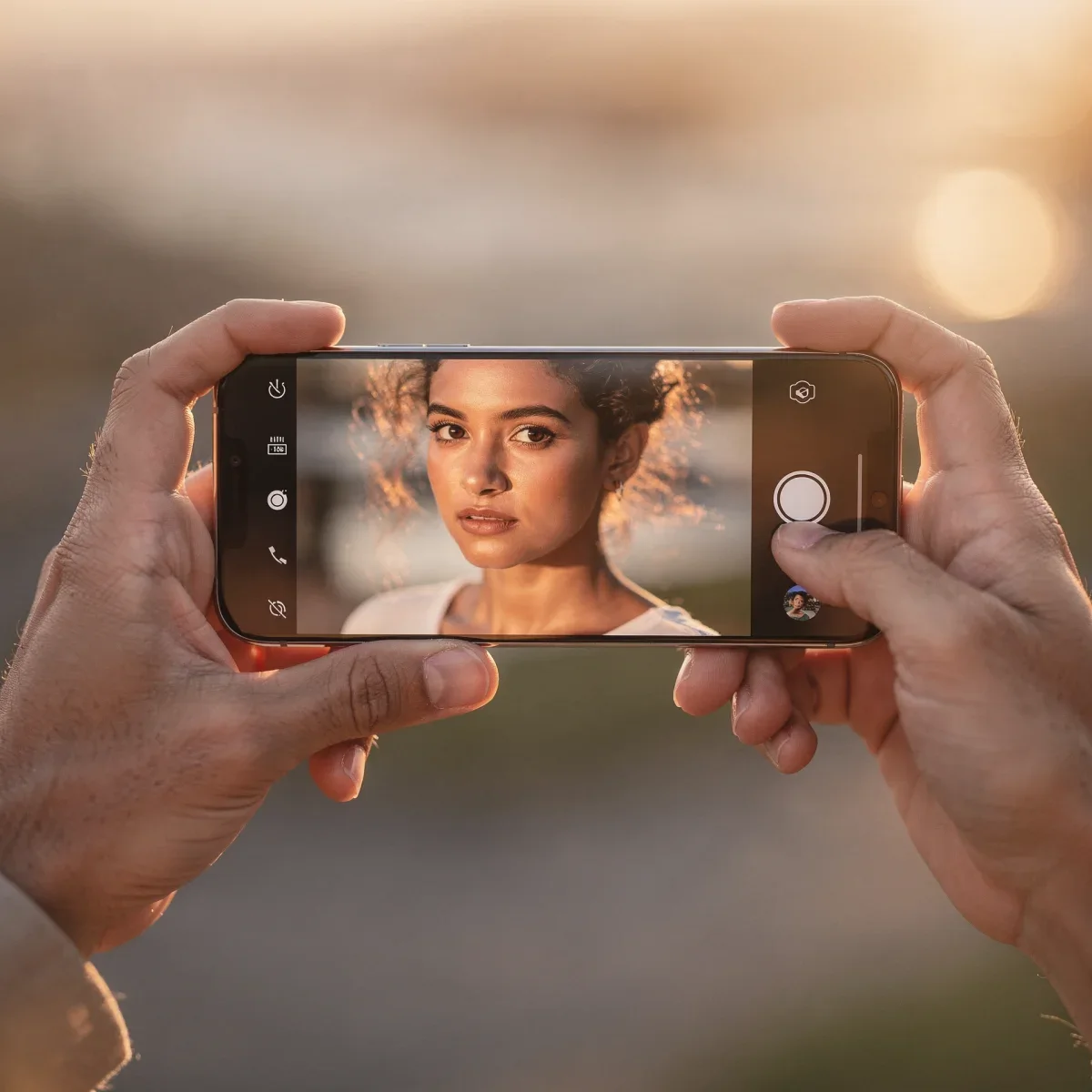
You do not need to drop $1,000 on the latest flagship phone just to capture crisp, clear images. Most modern smartphones already pack impressive sensors, yet blurry details and muddy lighting still ruin everyday snapshots. With a few practical phone camera tips, you can instantly improve your image clarity without spending a dime on extra lenses or accessories.
Advertisements
Clean Your Lens and Master Tap-to-Focus
The single biggest reason for hazy smartphone photos is surprisingly low-tech: finger grease. Your phone spends all day slipping into pockets, sitting on tables, and collecting fingerprints. Before you snap a photo, wipe the camera glass with a soft microfiber cloth or a clean cotton shirt hem. You will notice an immediate jump in contrast and clarity.
Once your lens is clear, stop letting your camera guess what you want to shoot. Most camera apps automatically focus on whatever sits in the center of the frame or whatever moves. Take control by tapping the exact subject on your screen—whether that is a friend's eyes, a flower petal, or a plate of food. This forces the autofocus mechanism to lock onto the fine texture you actually care about.
Lock Exposure and Stop Overexposing Highlights
Smartphones love bright images, but automatic exposure often blows out skies and softens details. When you tap to focus, look for the small sun or bulb icon right next to the focus box. Drag that slider slightly downward to lower the exposure.
Underexposing by just a fraction helps protect bright highlights and keeps textures crisp. If your subject is moving or lighting is tricky, press and hold the screen until you see AE/AF Lock appear. This locks your focus distance and brightness, preventing your camera from re-adjusting right as you press the shutter button.
Ditch Digital Zoom and Stabilize Your Stance
Pinching the screen to zoom in might seem convenient, but standard digital zoom simply crops and blows up pixels, creating pixelated, muddy messes. Instead of pinching, use your optical lenses (like the native 1x, 2x, or 3x buttons) or simply move closer with your feet.
Camera shake is another major cause of soft images, especially indoors or during golden hour. To keep your hands steady without a tripod, follow these basic habits:
- Tuck your elbows tightly against your ribs to create a human tripod.
- Use the physical volume button or the built-in 2-second timer instead of tapping the screen aggressively.
- Turn on your camera app's 3x3 grid lines in settings to align horizons and balance composition.
Quick Takeaways for Crisp Shots
- Wipe the glass: Clean pocket grime off your camera lens before every single shoot.
- Tap and drag: Manually select your focus point and pull down the exposure slider to keep details crisp.
- Use optical zoom: Avoid pinch-to-zoom; rely on native lens toggles (1x, 2x) or move closer physically.
Frequently Asked Questions
Why are my phone photos always blurry?
Blurry photos usually happen because of a smudged lens, slight hand shake during low-light shooting, or the camera focusing on the background instead of your main subject.
Does phone camera glass quality matter?
Yes. Dirt, oils, or cheap third-party lens protectors can severely refract light and reduce sharpness. Always keep the bare camera glass clean and scratch-free.
Should I shoot in 48MP or 50MP mode all the time?
High-resolution modes are great in bright daylight for landscapes, but standard 12MP modes use pixel binning to deliver sharper, brighter, and better-exposed photos in normal and low light.
Start Taking Better Photos Today
Taking great pictures is far more about technique than owning the newest gadget on the market. Try out these simple phone camera tips on your next walk or family dinner, and see how much sharper your shots turn out. Check out our tech section for more everyday smartphone guides and simple tutorials.