
Hunching over a small laptop screen for eight hours a day quickly leads to neck strain, tired eyes, and sluggish productivity. Investing in a dedicated monitor for work from home is one of the easiest ways to upgrade your daily routine. Whether you juggle massive spreadsheets, write code, or jump between video calls, having the right display makes all the difference.
Advertisements
Screen Size and Aspect Ratio: Finding the Sweet Spot
When selecting a display size, bigger is not always better for every desk. The right choice depends on your available space and the type of tasks you tackle every day.
- 24 to 27 Inches (Standard 16:9): The most versatile option for compact desks. A 27-inch screen offers enough space to view two documents side by side without taking over your entire work area.
- 32 to 34 Inches (Standard or Ultrawide 21:9): Ideal if you work with expansive timelines, data sheets, or multiple browser windows. A 34-inch ultrawide effectively replaces a dual-monitor setup while eliminating the split bezel down the center.
- Dual Monitors vs. Single Ultrawide: Dual 24-inch screens offer physical window separation, but an ultrawide delivers seamless screen real estate with fewer cables running across your desk.
Resolution: 1080p, 1440p, or 4K?
Resolution directly impacts text sharpness and visual comfort. Staring at blurry fonts for hours accelerates eye fatigue.
| Resolution | Best Screen Size | Primary Use Case |
|---|---|---|
| 1080p (Full HD) | Up to 24 inches | Basic office tasks, tight budgets, compact desks |
| 1440p (QHD) | 27 to 34 inches | General multitasking, sharp text, balanced performance |
| 4K (UHD) | 27 to 32+ inches | Design work, high-detail spreadsheets, maximum clarity |
For most professionals, 1440p on a 27-inch panel hits the perfect middle ground between sharp rendering and budget friendliness at retailers like Best Buy and Amazon.
Ergonomics: Protecting Your Neck, Back, and Eyes
Proper posture is essential when you spend full days at your desk. A quality display stand should offer height, tilt, and swivel adjustments so you can position the top third of the screen right at eye level.
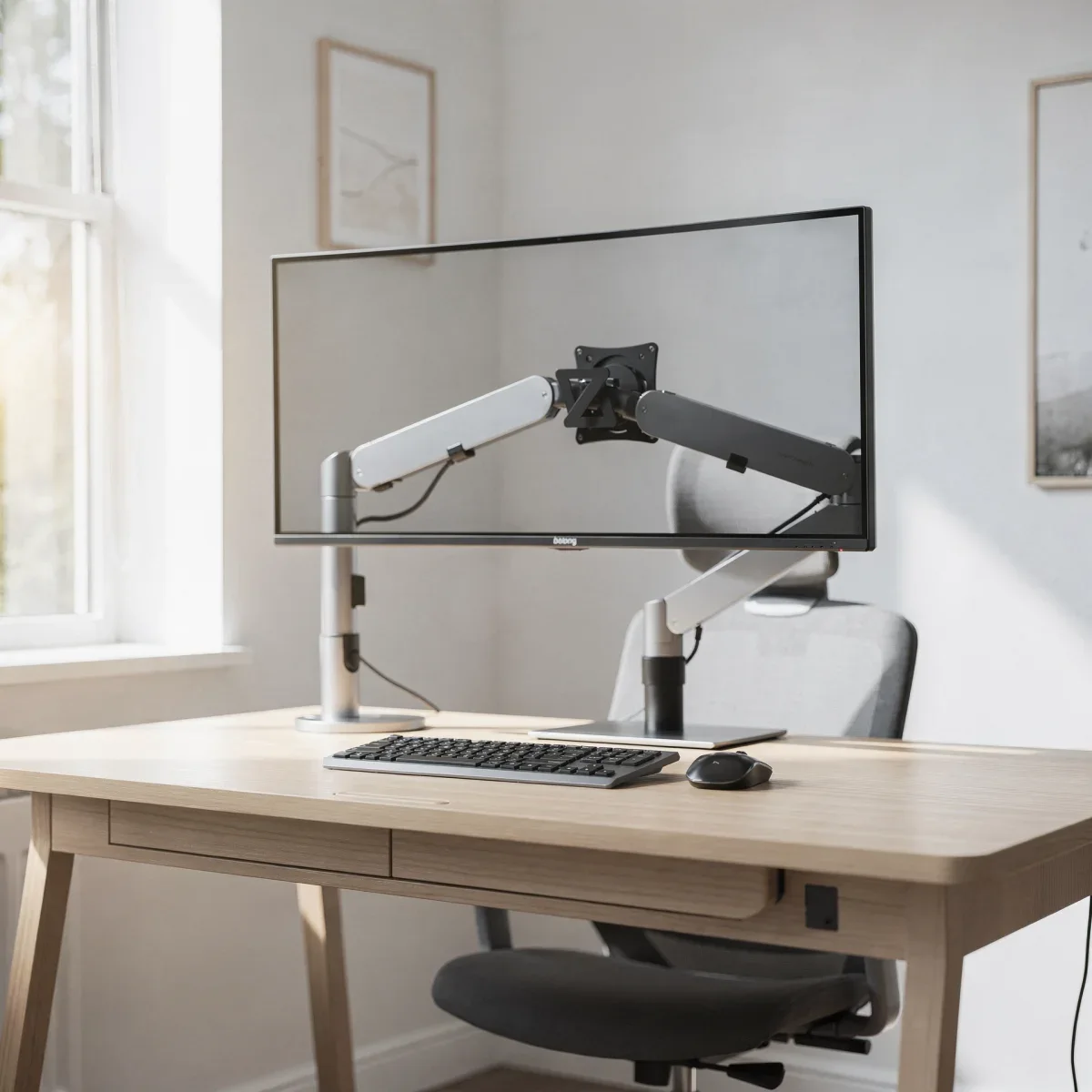
If your chosen screen has a rigid stand, ensure it includes standard VESA mounting holes (typically 75x75mm or 100x100mm). Pairing the screen with an aftermarket desk arm lets you float the monitor, reclaim valuable desk space, and reposition the display instantly.
Do not overlook panel type and eye care features. IPS panels deliver broad viewing angles and consistent colors across the entire panel. Look for built-in flicker-free backlights and hardware-level low blue light filters to minimize eye fatigue during late afternoon sessions.
Connectivity: Simplify Your Desk Setup
Modern productivity displays often act as full docking stations. A monitor equipped with a USB-C port that supports Power Delivery (PD) can transmit video, data, and up to 65W–90W of charging power to your laptop through a single cable. This setup clears out wire clutter and keeps your workspace clean and functional.
Quick Takeaways
- Best all-around pick: A 27-inch 1440p IPS monitor delivers crisp text and ample screen area for general office work.
- Prioritize adjustability: Choose a stand with height adjustments or add a VESA monitor arm to keep the screen at natural eye level.
- Streamline cables: Pick a monitor with USB-C Power Delivery to charge your laptop and transfer display data with a single cord.
Frequently Asked Questions
Is a curved monitor good for office work?
Yes, especially on ultrawide models measuring 34 inches or wider. The gentle curve keeps the outer edges within your natural peripheral vision, reducing neck turning throughout the day.
Is 4K worth it for work documents and spreadsheets?
4K makes text remarkably crisp and allows for higher scaling, reducing eye strain. However, on screens 27 inches and under, a 1440p display provides plenty of sharpness at a lower price point.
What refresh rate do I need for working from home?
A standard 60Hz or 75Hz display is adequate for documents and web browsing. Stepping up to 100Hz or 120Hz provides noticeably smoother window dragging and scrolling, making daily use feel more responsive.
Ready to Upgrade Your Workspace?
Selecting the right monitor for work from home comes down to balancing display real estate, crisp resolution, and healthy ergonomic alignment. Check your desk dimensions, review your laptop ports, and pick a model that keeps you productive and comfortable all week long.